












Menu Close

WordPress

Introducing Universally: Translate Your Entire Site with AI


Let me introduce Universally, an AI-powered translation tool that turns a WordPress site into a fully-translated, SEO-ready, multilingual experience in minutes.

Source

Build WordPress Sites with AI: New Plugin and Skills for Claude Cowork


Find out about new Skills and the Claude Cowork plugin for generating WordPress sites with AI.

Source

A New Theme for Short-Form Blogging on WordPress.com

At WordPress.com, we believe short thoughts deserve a real home. Today we’re introducing a new theme built for quick posts, replies, and reblogs: the kind of writing that lives somewhere between a tweet and a blog post, on a site that’s entirely yours.

If you’ve been thinking about starting your own small, private social network with friends or family, or you want a space to post thoughts freely, or to import your historical posts from Twitter, Mastodon, or Bluesky without handing your words over to someone else’s platform, this one’s for you.

Let’s take a look — or sign up now at wordpress.com/social.

Write now, not later

Click the “Compose” button, type your thoughts, watch the 500-character counter, and tap Post. No blank canvas, no formatting toolbar to navigate first. Just a simple prompt, What’s happening?, and a place to answer it.

A profile page that feels familiar

Your profile collects everything in one place: your avatar, bio, and the counts your readers will look for posts, following, followers. Tabs for Posts, Replies, Media, and Likes let visitors browse the way they already know how. A sidebar keeps Home, Explore, and your profile one click away.

Reblogs that actually work

This is the feature we’re most excited about. Click the reblog icon on any post and it flows into your own feed, credited to the original author, automatically. No screenshots, no copy-paste, no lost attribution.

Every post is a real post

Here’s what makes this different from a social app: every quick thought and every reblog is a real WordPress.com post on a site you own, and every reply is saved as a comment. You get the speed and feel of a social feed, with the permanence and portability of a blog. Export it, back it up, migrate it to another host. It’s yours.

Built for the open web

The theme is fully mobile-responsive, so posting from your phone feels just as natural as from your desktop. Tap Compose from wherever the thought hits you.

And because every blog on WordPress.com comes with RSS out of the box, your readers can follow along in whatever feed reader they already use. No algorithm, no app required, just a URL they can subscribe to and content that shows up when you publish it.

Give it a try

Head to wordpress.com/social to sign up for a new blog and get started.

We’d love to hear what you think.

Go From Idea to Live Ecommerce Store in One Hour

Thinking about selling online, but not sure where to start?

Our new course — Build Your Store with WooCommerce — gives you everything you need to create, set up, and manage your own online store with confidence. The WooCommerce plugin can be installed with any paid plan at no extra cost, turning your site into a complete store.

Whether you’re selling physical products, digital downloads, or services, this course takes you through the essential steps to get your shop up and running—so you understand not just what to do, but why it matters.

It’s fully self-paced, so you can move through each lesson in your own time. Complete the course in around an hour—or jump straight to what you need. 

What you’ll learn

Across a series of practical, beginner-friendly lessons, you’ll learn how to:

  • Set up your store foundation — choose a theme, install WooCommerce, and get your site ready for selling
  • Add and manage products — create simple, variable, and downloadable products 
  • Configure payments — accept payments securely and understand your available options
  • Set up tax and shipping — create shipping zones, classes, and configure tax settings for your store
  • Design your store experience — customize your store pages and display products in a way that reflects your brand
  • Test and manage orders — handle orders, emails, and refunds smoothly
  • Launch your store — go live knowing everything is set up and working as expected

Why you should take this course

Starting an online store is an exciting journey.

This course gives you a clear, step-by-step path to launching your store using WooCommerce—used by millions of stores worldwide and one of the most flexible ways to sell on WordPress.com.

You’ll learn not just how to set things up, but why each step matters—so you can make better decisions as your store grows.

By the end, you’ll have a store that’s live and ready to grow.

More video resources to explore

If you’re just getting started or looking to grow your site further, check out our other popular courses:

Your WordPress Expert in the Terminal: Try the Studio Code Beta

Studio Code is now in beta, and you can try it today — even though we’re still actively building it.

That’s intentional. We wanted to get it into your hands early, gather feedback, and shape the next phase of development together rather than polish it in a vacuum and call it done. Consider this the beginning of that conversation.

To try it, install Studio CLI (either from the desktop app or directly from your terminal) and then run studio code.

What is Studio Code?

Studio Code is a CLI tool — your WordPress expert in the terminal. Think of it like having a senior WordPress developer available as a command: one that reads your codebase, edits files, runs commands, can spin up local sites, and knows WordPress best practices deeply.

It’s like Claude Code or Cursor CLI, but specifically for WordPress. In fact, we’re leveraging the incredible tech of Claude Code to make Studio Code a powerful WordPress coding tool.

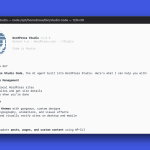
A terminal window with Studio Code open and a prompt saying "What can you do?" and the agent's response

General-purpose coding agents don’t have the tools to act on a WordPress site out of the box — they can’t spin up a local environment, run WP-CLI commands, validate block markup against the real editor, or screenshot the result to check their own work. 

Studio Code can. It’s purpose-built for WordPress: it understands block themes, knows WP-CLI inside and out, validates block markup against the real editor, and works the same feedback loop a developer would — run something, check the output, iterate until it looks right, and ship.

You describe what you want in natural language; Studio Code builds it.

What it can actually do

The honest answer: quite a lot, and it’s getting more abilities by the day.

Build a complete WordPress site from a description or reference. You give it a site concept — a bakery, a portfolio, a nonprofit landing page — or a reference URL, and it designs and builds a full block theme: layout, typography, color palette, and page content. It picks fonts, writes CSS, creates the pages, checks the visual output with a screenshot, and fixes what’s broken.

Manage your local WordPress sites. Create sites, start and stop them, install plugins, activate themes, set options, create posts and menus all through natural language. It uses WP-CLI under the hood, but you don’t have to.

Write and validate block content. Block markup has to be structurally valid or WordPress will reject it in the editor. Studio Code validates every block it generates against the real block editor before inserting it — running each block through its save() function in an actual browser.

Validate performance. Is your site fast? Run the /need-for-speed skill to run a performance audit on your local site, and you’ll get specific, actionable recommendations to speed it up.

Preview and publish to WordPress.com. Once you’re happy with your local build, you can generate a hosted preview site link and push to or pull from WordPress.com, where your site will be backed by fully managed hosting, built-in security, and 24/7 expert support.

Clean up your WordPress category taxonomy. Audit your existing categories, merge duplicates, retire dead ones, create missing ones, and re-categorize posts — all through natural language. It exports your content and applies AI-driven structure, but you don’t have to touch a single category setting yourself.

a terminal window asking Studio Code to create a preview site for a client

Why we’re shipping it now

We’re in the middle of building this, and we think that’s important to say out loud.

The core experience works. People are using it to build real sites, prototype ideas quickly, and skip the scaffolding work that eats time without adding value. We’ve seen it go from a brief description to a fully designed, content-filled WordPress site in a few minutes — start to finish.

But there’s more to build as AI gets better every day. We’re refining the design intelligence, improving how it handles complex layouts, and expanding what it can do with existing sites. So we’re doing the thing we believe in: shipping early, being honest about where it is, and building in public.

During the beta, we decided to keep the Studio Code experience free. That may change in the future, and we want your feedback before we can lock that in.

Give it a spin

Once you have the Studio CLI installed, simply run studio code to start using the beta.

We want to know what works, what doesn’t, and what you wish it could do. Open a GitHub issue with your thoughts, feedback, bug reports, and enhancement requests, and check out the documentation for more tips.

WordPress.com Changelog: Try the WordPress 7.0 Beta and a One-Click Solution for Plugin Errors

April 12–23, 2026

Welcome back to the WordPress.com changelog! 

Over the past two weeks, we opened up the WordPress 7.0 beta for Business and Commerce sites, made it easier for you to fix plugin errors, and made our Support Center more easy to navigate.

Releases

Try WordPress 7.0 before it ships

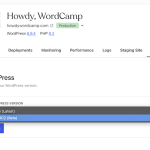
WordPress 7.0 is on its way, and if you’re on a Business or Commerce plan, you can now test the beta on your live and/or staging site.

Visit Sites → Your Site → Settings → Server → WordPress, and pick the beta version from the dropdown.

The WordPress 7.0 beta opt-in selected in a drop-down menu on WordPress.com

WordPress.com takes an automatic backup of your site before switching the version, keeps your site on the latest beta as new betas are released, and lets you switch back to a stable version at any time from the same settings area.

Security

When a plugin breaks your site, you can fix it in one click

When a plugin causes a fatal error on your WordPress.com site, you no longer face a blank screen with no way out.

Site owners will now see an error page that identifies which plugin triggered the problem and offers a one-click Deactivate button, which works even if the site won’t load normally, to disable the offending plugin before it has a chance to run again.

The critical error one-click disable screen on WordPress.com

Meanwhile, your site visitors see a clean apology — no technical details, no alarm.

Site Unavailable message on WordPress.com

For further peace of mind, our Happiness Engineers are constantly working to detect potential issues with plugins that may cause fatal errors on your site and proactively seek solutions before they become an issue for you or your readers/users. 

We also have a dedicated team of Security Specialists who work on detecting and resolving malware and other threats to your sites and will keep you updated with anything they find via email.

Support

Navigate our Support Center with the Support Assistant

Using the search bar in our Support Center now launches the Support Assistant by default for logged in and logged out users. The chat can surface answers to your specific questions, highlight helpful support resources, and connect you with one of our incredible Happiness Engineers if you need more assistance.

An orange arrow pointing from a text box to an assistant chat on WordPress.com Support Center

Fixes and improvements

We shipped additional reliability and polish updates across WordPress.com too, including:

  • Adding an explicit confirmation screen when connecting your WordPress.com account to Telegram.
  • Preventing survey pop-ups from appearing while the Help Center is open, so the two don’t compete for your attention.
  • Enabling customers to start a free trial using UPI.

Spry Fox Has Been Making Games for 15 Years. Their Blog Is Still One of Their Best Growth Tools.

David Edery co-founded Spry Fox in 2010 with a simple goal: creating games that make people happy.

What followed was 15 years of quirky, original titles like Cozy Grove, a narrative-driven life simulation game that became a cult favorite, and Spirit Crossing, a cozy MMO currently in open alpha and targeting a full PC launch later in 2026. 

In 2022, Netflix acquired the studio. In January 2026, Spry Fox spun back out as an independent studio, still partnering with Netflix on Spirit Crossing.

Through all of it, including the acquisition and the spin-out, their WordPress.com presence stayed constant.

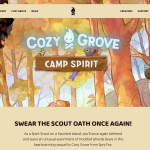
Screenshot of the Cozy Grove WordPress site.

Why a game studio still needs a website

Many game studios lean hard on social media and paid advertising. Spry Fox has always done things differently.

Their growth has been almost entirely organic — built through a newsletter, Discord communities, Reddit, and a blog that’s been running since the early days of the company.

We’ve been trying to maintain a relationship with our audience through our newsletter, our Discord servers, and our blog on WordPress. That’s been driving the majority of our growth over the years.

David Edery co-founder Spry Fox

The blog is where Spry Fox puts the thinking that deserves more space than quick Reddit or Discord updates. A deep dive into how they tuned the economy of Spirit Crossing, a post explaining a design decision, or a longer piece on where the studio is headed.

That’s where we put deeper thoughts. If we need a place to say: hey, we thought carefully about this — we always start with the blog.

David Edery co-founder Spry Fox

Screenshot of the Spry Fox WordPress site.

It’s also an archive. A record of how the studio thinks, what they’ve built, and why. 

The site also drives traffic. People search for old games like Triple Town, land on the blog, and discover what Spry Fox is working on now. It’s a quiet but steady acquisition channel, and one that costs almost nothing to maintain.

The website that just works

Spry Fox’s game sites — including Cozy Grove and Spirit Crossing — are hosted on WordPress.com and built and maintained by the Automattic Special Projects team.

Screenshot of the Spirit Crossing page.

For David, the value is straightforward.

The website just works. If there’s ever an issue, it gets solved. I don’t have to think about it.

David Edery co-founder Spry Fox

That’s not a small thing for a studio focused on making games. Every hour spent on hosting, maintenance, or troubleshooting is an hour not spent building. WordPress.com removes that category of problem entirely.

Your story deserves a home, too

Spry Fox has spent 15 years building an audience without massive investments in paid advertising. Their site on WordPress.com is a big part of why that works. A place they own and control, and a record of who they are and what they’re building.

WordPress.com gives you fast, secure hosting and a platform built for long-form publishing, so you can focus on the work that truly matters.

9 Steps to Prepare Your WordPress Site for AI Search Engines


Learn how to optimize your WordPress site for AI search engines with this practical guide.

Source

How to Setup a WordPress Appointment Booking System & Book Clients 24/7


Learn how to easily set up a WordPress appointment booking system. Automate your scheduling, accept payments, and book clients directly on your website.

Source

The Top 10 Creative WordPress Themes with Real Personality

Some WordPress themes are built for legibility. These are built for expression. 

Whether you’re an artist, maker, or creative business owner, the right theme doesn’t just display your work — it is part of your work.

Here are 10 creative WordPress themes for making a real visual impression.

How I tested these WordPress themes

Whenever I evaluate a theme, I always try it out on my WordPress staging site first.

For each theme, I customized the homepage layout (changing sections, images, and text), explored the templates and patterns libraries (pre-built page layouts and design blocks), and tested any built-in features and unique design elements. I then ran a few blog posts through each theme to see how they handled content.

My goal was to choose themes that make it easier for your website to feel uniquely yours:

  1. Sankofa: Best for cultural organizations, museums, and archives
  2. Memphoria: Best for fashion and design bloggers
  3. Miko: Best for personal portfolios 
  4. Kawaii-Chan: Best for beauty and style influencers 
  5. Feelin’Good: Best for nostalgic creators and bloggers 
  6. Roblog: Best for gamers and streamers 
  7. Parr: Best for artists, gallerists, and visual portfolios
  8. Punk: Best for musicians and bands 
  9. Psychedeli: Best for groovy bloggers 
  10. The Jazzers: Best for music bloggers 

Let’s look at each of them in detail:

1. Sankofa: Best for cultural organizations, museums, and archives

Sankofa Theme Homepage
  • Setup: Intermediate/advanced
  • Who should use it: Museums, cultural organizations, archives, and institutions that publish rich editorial or historical content

Sankofa is a robust theme that draws on Afrofuturist design, with bold colors, original geometries, fractal patterns, and expressive fonts. 

The standout features are its angular image shapes, which appear across page templates, and its customizable About pattern. 

For best results, add your images at the block or archive level rather than replacing them one by one — this ensures the angular shapes display correctly across your site.

Sankofa Theme

Sankofa includes seven unique page templates and two theme-specific patterns, including an organization manifest, which is especially useful if you want to include a company page.

Sankofa Theme Page Template

The verdict 

With some customization, Sankofa offers all the tools you need to build a robust, visually striking website. To get the most out of this theme, you need to be comfortable with patterns, loops, and parent block functions. A word of caution: If you’re new to WordPress, this theme has a steeper learning curve than others.

2. Memphoria: Best for fashion and design bloggers

Memphoria Theme Homepage
  • Setup: Beginner
  • Who should use it: Bloggers who want to show a lot of personality with a wild edge

Memphoria offers a quirky blog layout, with a feed that stacks posts like a layered collection of Polaroids. Together with its six candy-colored theme options, this WordPress theme has a wild, maximalist feel that’s hard to replicate. 

It comes with six-page templates and custom styling options for the feed, tags, and separators. 

I particularly liked the kooky separator options: wavy, dots, zig-zag, and wiggly, which add a playful vibe.

Memphoria Blog Post Design

The verdict 

Memphoria’s Polaroid-style homepage and additional page templates make it easy to build a distinctive, personality-driven blog with minimal setup. 

However, that strong aesthetic means this theme offers limited customization for websites that require greater design flexibility.

3. Miko: Best for personal portfolios

Miko Theme Homepage
  • Setup: Intermediate
  • Who should use it: Personal websites, writers, and other non-visual portfolios

Miko offers a split-page site design with a bold color palette and an unconventional approach to navigation — instead of a traditional header, the sticky panel on the right side of the screen keeps your primary photo and title visible on every page.

This layout is great for personal websites and portfolios centered on one strong image because it keeps your brand closely anchored to your content on the left.

Miko Blog Layout

The verdict 

Miko is a good option if you need a personal site with just a single strong image, such as a headshot or brand photo. It’s a great fit for resumes, project links, or writing samples. 

4. Kawaii-Chan: Best for beauty and style influencers

Kawaii-Chan Theme Design
  • Setup: Beginner
  • Who should use it: Influencers, creators, and bloggers

Kawaii-Chan lives up to its name and inspiration: lively, sweet, and available in multiple pastel colors. 

The rounded headers and footers and bubble-style image frames create a cozy and playful atmosphere, and the built-in kawaii background pattern immediately sets the tone for the site’s aesthetic.

Kawaii-Chan Archive

The verdict 

Kawaii-Chan is a fun theme if you want your lifestyle blog to express a cartoonish, childlike charm. 

If you feel the background pattern is a little too much, you can easily swap it out under Theme Design Background — a handy option if you want a cleaner look while keeping the kawaii aesthetic.

5. Feelin’Good: Best for nostalgic creators and bloggers

Feelin’Good Theme Design
  • Setup: Beginner/intermediate
  • Who should use it: Creators looking for a theme with a nostalgic, retro internet aesthetic

Feelin’Good opens to a colorful homepage image with a semitransparent blog feed. The default look is pure vaporwave, but you can easily swap the site imagery to create different moods.

The header lets you add a logo or a headshot to the right corner, while the footer includes a finger icon that fits the retro style.

Feelin’Good Footer

The verdict 

If you want to add ’80s or ’90s stylings to your site, this theme works perfectly. You can also tailor the visual style with a different background image or color scheme. 

6. Roblog: Best for gamers and streamers 

Roblog Theme Design
  • Setup: Beginner
  • Who should use it: Gamers, streamers, and playful bloggers

Roblog is a nod to the iconic Roblox platform, featuring rounded block styling and a “Playful” logo style that tilts your icon in a mischievous reference to Roblox’s own branding.

Roblog Site Logo Settings

It’s the only theme on this list with a two-column post layout. The sidebar gives you space for an About section, related categories, and a subscription block — making it easy to build your email list right alongside your content.

Roblog Layout

The verdict 

Roblog is a fun theme with useful functionality, such as sidebar subscriptions. The two-column layout is also a big advantage for blogging, but it might feel limiting if you plan to feature other types of content.

7. Parr: Best for artists, gallerists, and visual portfolios 

Parr Theme Homepage
  • Setup: Beginner
  • Who should use it: Photographers, artists, or anyone needing an image-driven website

Parr is a curatorial theme that puts bold imagery front and center. The sideways text elements free up visual space, while the individual blog pages resemble spreads from an art magazine.

The “previous” and “next” buttons on each edge create the feel of turning the page.

Parr Navigation Buttons

Parr’s layout doesn’t offer any variation, but you can still modify the fonts and colors to create your own distinct look.

The verdict 

If you’ve got a visual site and want your images to shine, Parr is the perfect backdrop. It’s a great option for portfolios and photo journals.

You can play around with the theme’s style options to match your brand, but make sure that Parr’s bold, defined layout is a good fit for your vision.

8. Punk: Best for musicians and bands 

Punk Theme Homepage
  • Setup: Intermediate
  • Who should use it: Alternative music bloggers, bands, and musicians

Punk leans hard into the zine aesthetic and commits to it fully. The halftone effect automatically converts your images into one of six two-tone color schemes for a raw, DIY feel. 

Punk Theme Layout

It’s one of the most customization-rich themes on this list. Beyond the homepage, individual posts and pages keep the aesthetic alive with doodles and other lo-fi design elements. 

Punk Theme Footer

The verdict: 

If you like the punk or zine aesthetic, this theme delivers a ton of character throughout your site from the start. 

However, if you have lots of content and site imagery, prepare yourself to spend some time making sure everything looks good in halftone.

9. Psychedeli: Best for groovy bloggers

Psychedeli Theme Design
  • Setup: Beginner
  • Who should use it: Bloggers who love a psychedelic, counterculture feel

Psychedeli channels the ’60s with neon tones, exaggerated fonts, and psychedelic patterns. 

The style variations are more than just color palette tweaks. The backgrounds and fonts also change, so each variation feels like its own distinct site.

Psychedeli Style Variations

Like Punk, Psychedeli automatically adjusts your images to match the theme’s color palette for a cohesive site-wide look. 

Psychedeli Theme Layout

The verdict 

Psychedeli is a bold, vibrant theme that plays nicely with your blog content right out of the box. The color effects are part of the style. However, if you have high-quality images and want to preserve their original style, this might not be the right fit.

10. The Jazzers: Best for music bloggers

The Jazzers Theme Design
  • Setup: Intermediate
  • Who should use it: Music bloggers and reviewers

The Jazzers theme aims to recreate the feeling of browsing through a vinyl collection. 

The large-scale title text and background images evoke classic album sleeves — a perfect aesthetic for music lovers.

The Jazzers Layout Example

This theme makes it easy to curate an attractive blog feed and has enough character for a vibrant music blog. 

The verdict 

If you want your pages to feel like a much-loved vinyl collection, this theme is right up your alley. It does take work to manage the visual tweaks and lengthy titles, though, so make sure you’re willing to put in the effort every time you post.

Build something great with WordPress.com

I’ve given you my take on the top 10 creative WordPress themes, but you know your work better than any list does. The right theme will click the moment you see it.

The best way to find the right fit is to build a site on WordPress.com and explore the options for yourself. 

If you already have a vision, get a custom look fast with our AI website builder. Just describe the look and feel you want with a text prompt and launch your site with managed WordPress hosting.

Ready to find the right look for your website?